Photos and creativity
Photos and Memories
About 15 minutes, at your own pace
You are in a safe place. Nothing on this page can harm your device.
The fun stuff. Your device is not just a tool for email and banking. It is a canvas for creativity, a photo album that never fills up, and a window into art and music. This module is about discovering joy in your device.
Betty's story
Betty, 78, had always loved painting watercolours. When arthritis made it harder to hold a brush, she thought her painting days were over. Then her granddaughter showed her a drawing app on the iPad.
"At first I thought it was silly, painting with your finger on a piece of glass," Betty laughs. "But then I discovered you could choose any colour instantly, undo a mistake with one tap, and zoom in to add tiny details. I painted my first digital watercolour that afternoon, a cardinal sitting on the fence in my backyard."
Betty now paints on her iPad every evening after dinner. She emails her paintings to friends, prints them out as greeting cards, and recently started an online gallery that her grandchildren helped her set up. "This little device gave me my art back," she says.
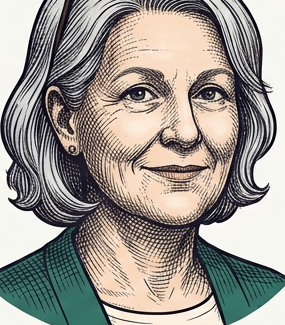
Many people avoid touching their photos because they are afraid of deleting a memory they cannot get back. That fear is an act of love, not a weakness. The good news: deleted photos sit in a recovery folder for 30 days, so even a wrong tap is reversible. Your memories are safer than you think.
You do not need an expensive camera. The camera on your device takes wonderful photos. The best camera is the one you have with you.
Taking great photos with your device
Taking a photo
Find the Camera app on your Home screen. On an iPad or iPhone it looks like a simple camera icon on a grey background. On Android it usually says "Camera".
Point your device at what you want to photograph. The screen shows what the camera sees.
Tap the large round button at the bottom of the screen. That is the shutter button. It takes the photo.
Your photo is automatically saved: in the Photos app on Apple devices, or in Google Photos or your device's Gallery app on Android.
Hold steady: rest your elbows on a table or hold your device with both hands. Shaky hands mean blurry photos. Use natural light: photos taken near a window or outside in daylight look much better than photos taken under indoor lighting. Tap to focus: if you want to photograph something specific (like a flower in a garden), tap on that object on your screen. The camera will adjust to make that object sharp and clear. Clean the lens: the tiny camera lens on the back of your device can get smudged by fingerprints. Gently wipe it with a soft cloth before taking photos.
You have a camera in your hands right now. Every moment is an opportunity to capture something beautiful. Now let us make those photos look even better.
Editing your photos
Your device comes with built-in photo editing tools that are surprisingly powerful. You do not need any extra apps: use the Photos app on an iPad or iPhone, or Google Photos on Android.
Basic photo editing
Open the Photos app (colourful flower icon) on Apple, or Google Photos (colourful pinwheel icon) on Android.
Tap the photo you want to edit.
Tap "Edit". On Apple it is in the top-right corner; on Android it looks like a set of sliders at the bottom.
You will see several tools: Auto-Enhance (the magic wand on Apple, or "Enhance" under Suggestions in Google Photos) lets your device automatically improve the photo. This is often the best first step. Crop (square icon) cuts away parts of the photo you do not want. Filters add artistic effects like black and white. Adjust changes brightness, contrast, and colour.
When you are happy with your edits, tap "Done" (Apple) or "Save copy" (Google Photos, which keeps your original safe).
Changed your mind? You can always go back to Edit and tap "Revert" to undo all changes and return to the original photo. Nothing is permanent.
Photo editing is non-destructive. Your original photo is always saved, and you can always undo any edits by tapping "Revert to Original". So experiment freely.
Organizing your photos
As you take more photos, you will want to keep them organised. Here are some helpful features built into the Photos app and Google Photos:
- Albums: you can create albums to group photos together, like "Garden 2025", "Grandchildren", or "Recipes". On Apple, tap the Albums tab, then the "+" button. In Google Photos, tap the Library tab, then "New album".
- Favourites: when viewing a photo, tap the heart icon (Apple) or star icon (Google Photos) to mark it as a favourite. All your favourites appear in a special "Favourites" album for quick access.
- Search: your photo app can recognise what is in your photos. Tap Search and type something like "beach" or "birthday" or even "dog", and it will find matching photos.
- Memories: your device automatically creates slideshows from your photos, set to music. On Apple, look for the "For You" tab. In Google Photos, look at the top of the main screen. They can be quite lovely.
Your photos are treasures, and now you know how to take them, improve them, and keep them organised. Well done.
Drawing and painting apps
Your device is a wonderful tool for drawing, painting, and creating art. Here are some apps to explore:
- Paper by WeTransfer (free, App Store, developer WeTransfer BV): a beautiful, simple drawing app. Swipe to turn pages, draw with your finger, and choose from pencils, pens, markers, and watercolour brushes. Perfect for sketching and doodling.
- Ibis Paint X (free, Play Store, developer ibis inc.): a popular and beginner-friendly drawing app for Android with many brushes, pens, and tools. One of the most-loved free art apps on Android.
- Tayasui Sketches (free version available, App Store and Play Store, developer Tayasui): incredibly realistic art tools. The watercolour brush actually behaves like real watercolour paint, blending and spreading on the digital "paper". Betty's favourite app.
- Colouring books for adults (various, free): search the App Store or Play Store for "adult colouring" to find relaxing colouring book apps. Tap to fill in areas with colour, choose from hundreds of patterns, and save your creations.
When downloading creative apps, always use the official App Store or Play Store. Some "free" art apps contain ads or hidden subscriptions. Check the reviews and developer name first.
Making greeting cards and collages
Your photos can become beautiful greeting cards, collages, and gifts:
- The Photos app itself can create printed books, calendars, and cards. Look for the share button and options to print or order prints. In Google Photos, check the Library tab and look for "Utilities" to find options for creating collages and movies.
- Canva (free, App Store and Play Store, developer Canva) is an app with thousands of templates for cards, invitations, posters, and social media posts.
- Print at home: if you have a printer, you can print photos directly from your photo app. On Apple, tap the share button (square with upward arrow) and select "Print". In Google Photos, tap the three dots menu on any photo and select "Print".
Listening to music and audiobooks
Your device is also a wonderful entertainment device:
- Apple Music: access millions of songs. If you have an Apple Music subscription, open the Music app and search for your favourite artists or decades (try "1960s hits" or "classical piano").
- Apple Books: read e-books or listen to audiobooks. The Books app (orange icon with a book) lets you adjust text size, and audiobooks are wonderful for when your eyes need a rest.
- Podcasts: the purple Podcasts app has thousands of free shows on every topic imaginable. Search for "gardening", "history", "mystery stories", or anything else that interests you.
You have discovered that your device is not just a communication tool. It is a creative studio. Betty found her art again through her iPad. What will you create?
Practical exercise: your creative debut
This is the fun one. Choose one or more of these activities:
Try it yourself
Take five photos of things you find beautiful around your home: a vase of flowers, a favourite book, the view from your window, your pet, or your morning coffee.
Edit one photo using the built-in editing tools. Try the Auto-Enhance (magic wand) first, then experiment with cropping.
Create a favourites album. Go to Albums, tap "+", name it something like "My Beautiful Things", and add your five photos.
Try a drawing app. Download "Paper by WeTransfer" from the App Store and draw anything: a flower, a face, your name. There are no rules.
Send your favourite creation to someone you love. Share a photo or drawing with a family member using Messages or Mail.
You have taken and edited at least one photo. You have discovered that your device can bring you joy, not just anxiety. You may have surprised yourself with what you created.
Send a photo of something you see right now to someone you love. It does not have to be perfect. They will love that you thought of them.
Quick check: test your knowledge
Tap the answer you think is correct. There is no score kept and nothing to sign in to.
1. Where are your photos stored when you take them on an iPhone?
2. Someone asks you to text them a photo of your driver's licence so they can "verify your identity". What should you do?
3. You want to share a family photo album with grandchildren far away. The safest option is:
4. What does it mean to "back up" your photos?
5. A photo app asks permission to access ALL photos on your phone. You only want it to use one specific photo. What should you do?
Your progress
Tick each item as you feel confident with it. This is saved on this device only, with no account needed.
Send this lesson to someone
Helping a parent or friend? This page works on its own, with no account and nothing to install. Copy the link and text it to them.
Well done. You have explored the creative side of your device: taking photos, editing, drawing, and sharing. Your device is not just safe. It is a source of creativity, beauty, and connection. Enjoy it.